
Configuring Transcription
Set up offline Apple Intelligence or Cloud APIs for speech-to-text.
Before recording, you need to select the service provider that will process and transcribe your audio. You can access these settings via the Configure button in the Recording sidebar tab.
Option 1: Apple Intelligence (Offline & Free)
This uses the on-device speech recognition capabilities built directly into macOS. It is completely private, free, and works without an internet connection.
- In the Recording view, click Configure.
- Select Apple Intelligence.
- Manage Languages: You will see a status list of supported languages.
- If the language is "Installed": You are ready to go.
- If the language is "Not Installed": Click the download icon next to the language to install the necessary pack to your device.
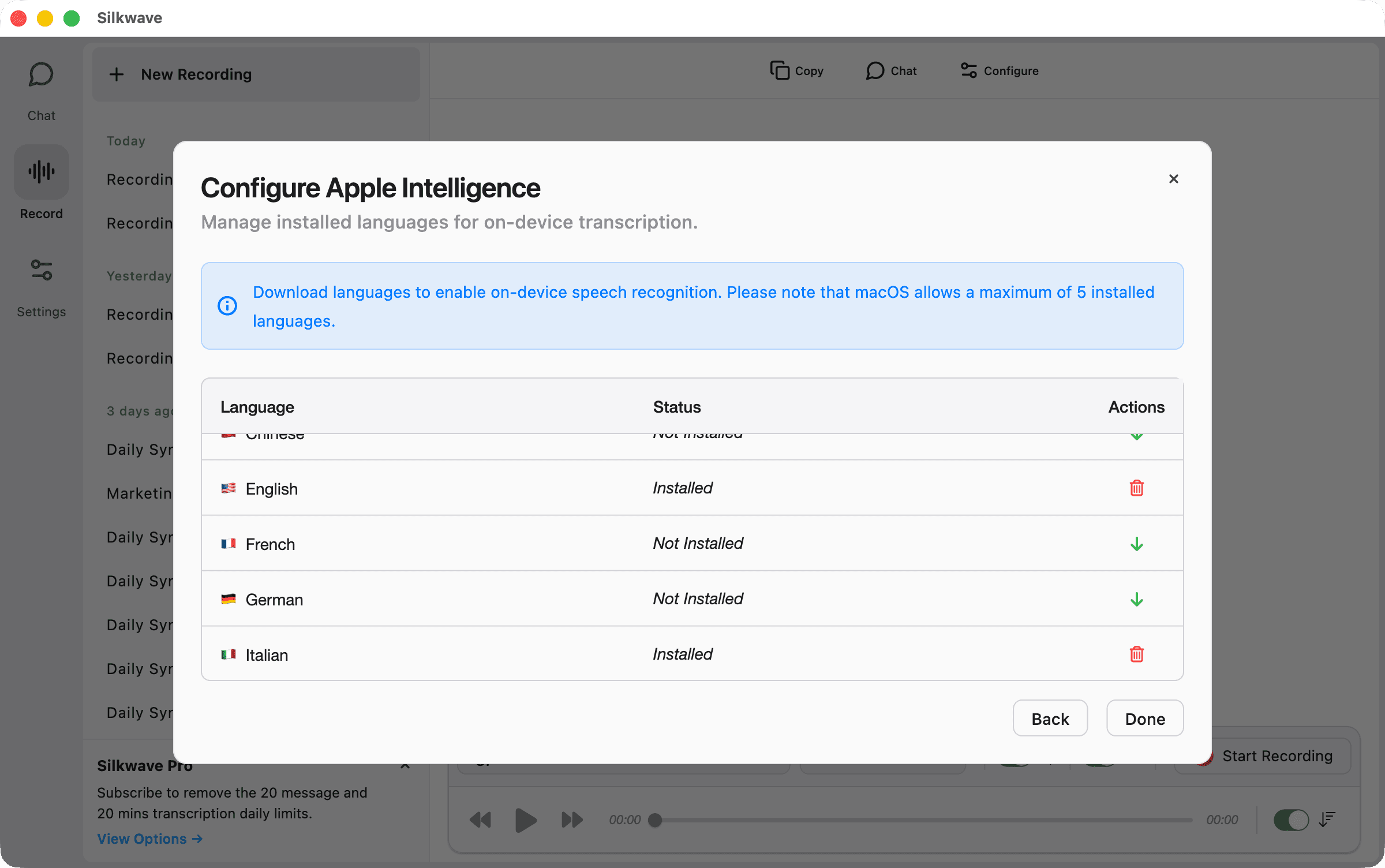
Supported Languages
Silkwave leverages Apple Intelligence (macOS 26+) to transcribe the following languages on-device:
- Cantonese 🇭🇰
- Chinese 🇨🇳
- English 🇺🇸
- French 🇫🇷
- German 🇩🇪
- Italian 🇮🇹
- Japanese 🇯🇵
- Korean 🇰🇷
- Portuguese 🇵🇹
- Spanish 🇪🇸
Option 2: OpenAI API (Cloud)
For additional languages not supported by Apple Intelligence, or to use specific cloud models, you can connect to the OpenAI API.
- In the Recording view, click Configure.
- Select OpenAI.
- Enter your API Key (if you haven't already set it up in the Chat section).
- Select Model: Choose from the available OpenAI models (e.g., gpt-4o-transcribe) for transcription.