
Connecting Chat Providers
Configure cloud APIs and local models for the Chat interface.
To start chatting, you need to connect Silkwave to an AI provider. You can connect multiple providers and switch between them easily.
1. Cloud Providers (BYOK)
Silkwave functions strictly on a "Bring Your Own Key" (BYOK) basis for cloud providers. To use services like OpenAI, Google, Anthropic, and Nebius, you must supply your own API credentials.
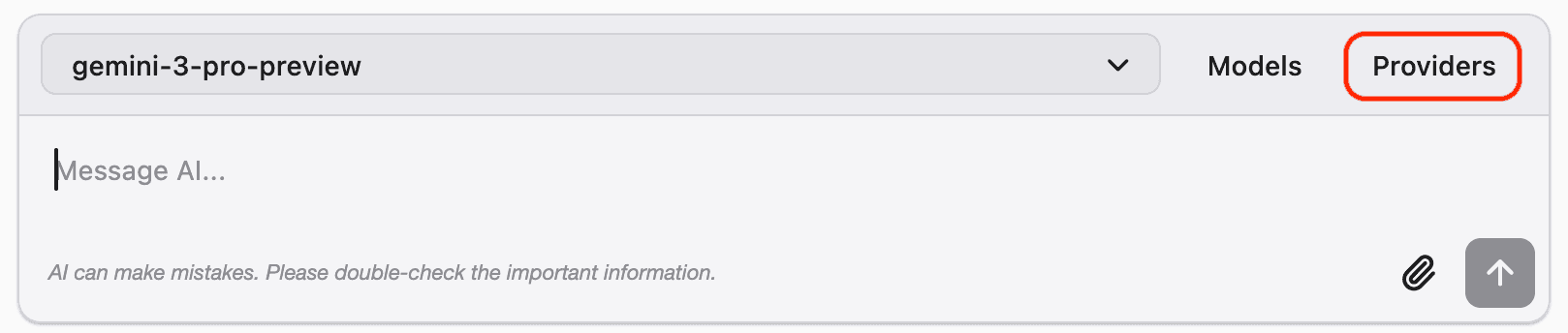
Step 1: Open the Providers Menu
In the main Chat view, click the Providers button located at the bottom right of the input area.
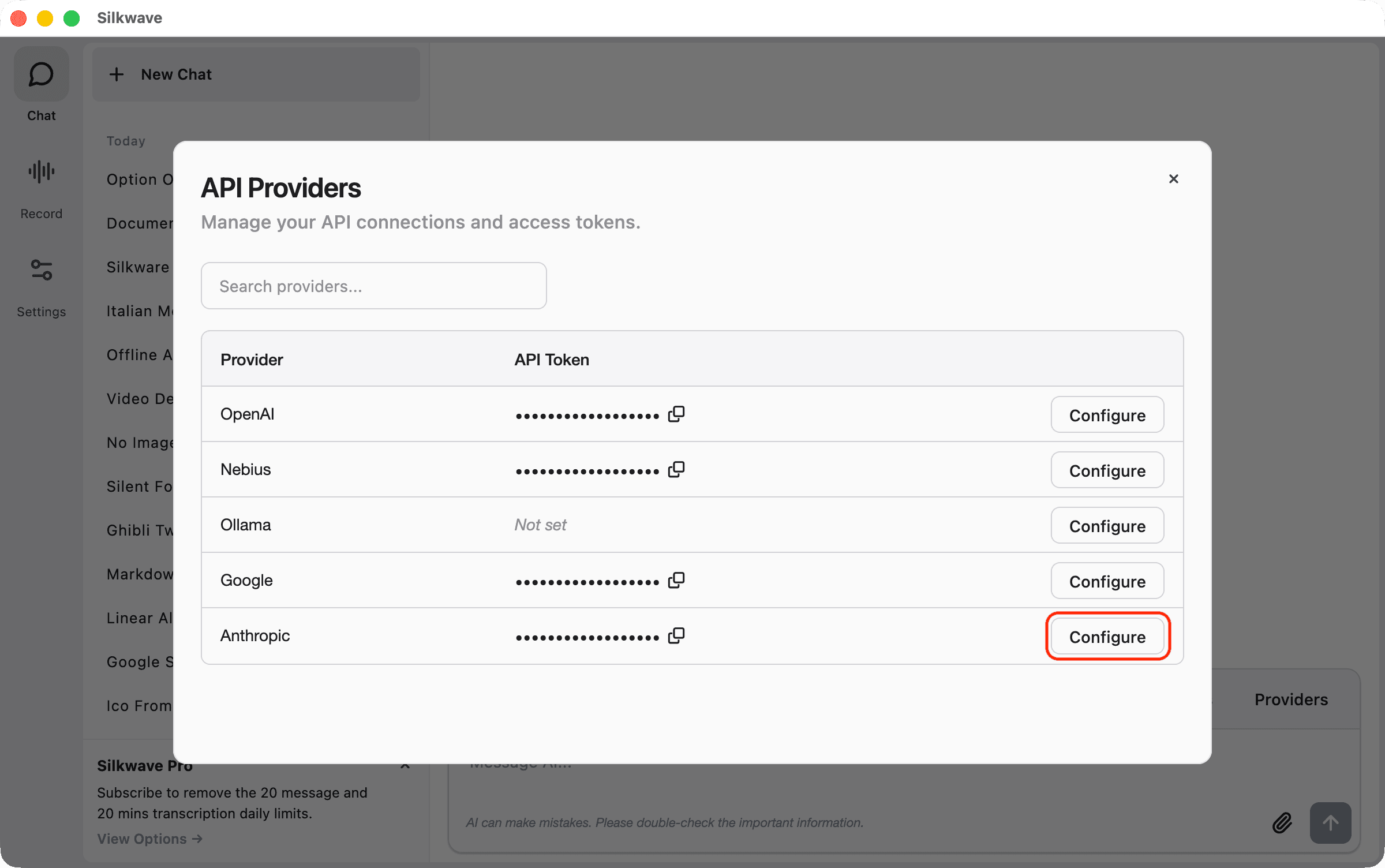
Step 2: Configure a Provider
Find the provider you wish to use (e.g., Anthropic) and click Configure.
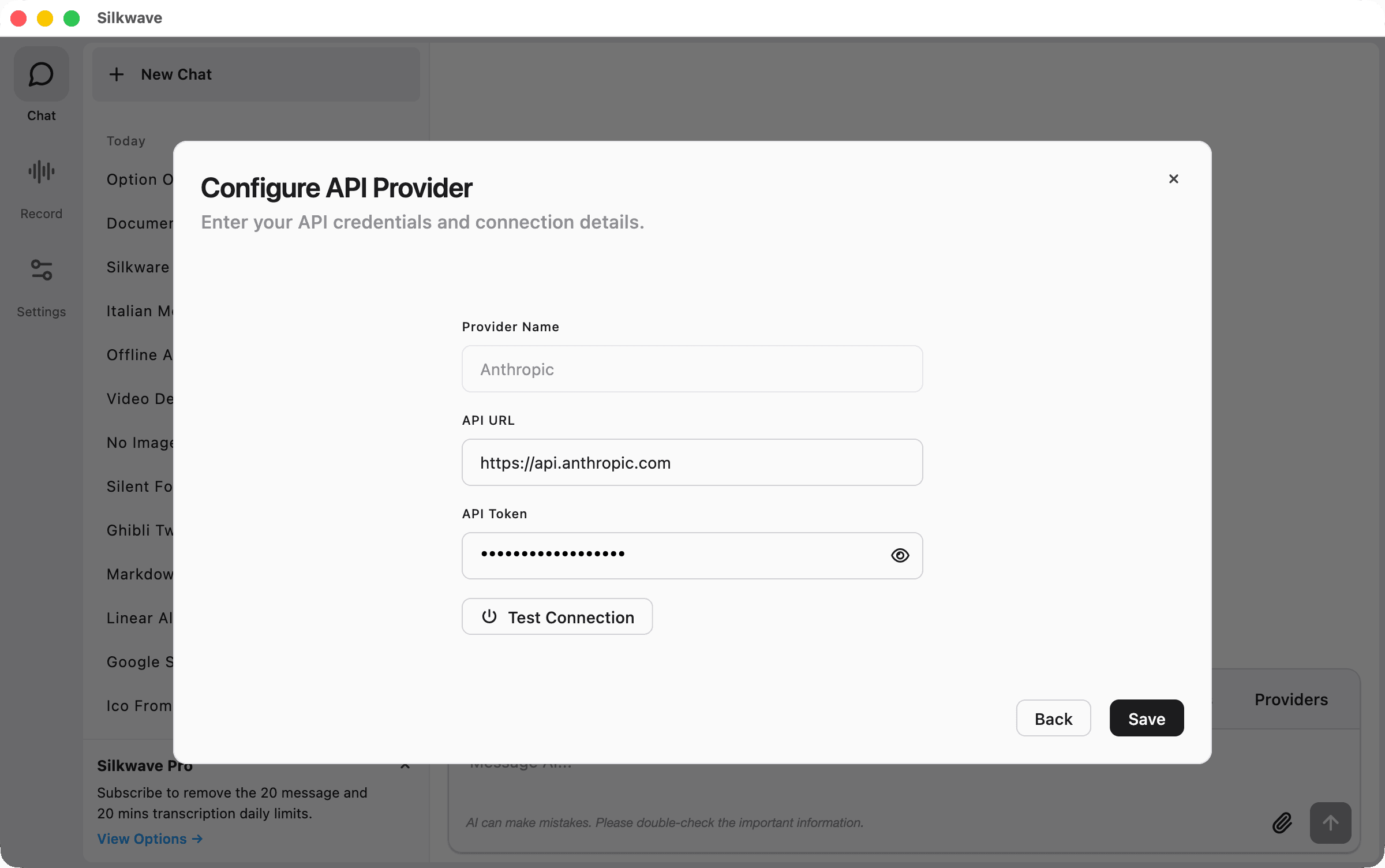
Step 3: Enter Credentials
- API URL: This is usually pre-filled with the default endpoint.
- API Token: Paste the API key generated from the provider's dashboard.
- Click Test Connection to verify, then click Save.
2. Local Providers (Offline)
You can chat with AI models without an internet connection.
Apple Intelligence
Silkwave integrates with the models built into your machine. No configuration is required for this provider. If you are on MacOS 26+, you can use it right away. It is not supported on older macOS versions.
Ollama
If you run Ollama locally:
- Ensure your Ollama server is running (default port 11434).
- In Silkwave, click Configure next to Ollama.
- The app will automatically detect your local models.